Finding specific information on a large website can be frustrating when pages, articles, and products are spread across many sections. Instead of scrolling through endless menus or guessing where content might be located, learning how to search within a website helps you reach the exact page or information quickly.
Many websites include built-in search tools, and there are also search engine techniques that allow you to locate information within a specific domain. Whether you are researching a topic, reviewing blog posts, or looking for a product page, knowing the right method can save time and improve the overall browsing experience.
Why Searching Within a Website Is Useful
From my experience working with SEO content and large websites, why searching within a website is useful becomes obvious once a site grows beyond a few pages. Instead of manually navigating menus, users can jump directly to the information they need, whether it’s a blog article, product page, or support guide. This approach saves time, improves navigation, and helps readers locate deeper content that might otherwise stay hidden inside archives or categories.
The Fastest Way to Search for Words on a Website
Using Ctrl + F or Command + F on Desktop
One of the simplest methods I recommend when explaining how to search within a website is the browser shortcut. Using Ctrl + F or Command + F on desktop instantly opens a search box that scans the current page for a specific word or phrase. For example, if you open a long article and press Ctrl + F, typing keyword research highlights every instance of that phrase so you can jump directly to the relevant section without scrolling through the entire page.
How to Search for Text on Mobile Browsers
Many people forget that how to search for text on mobile browsers works in a similar way. In Chrome or Safari on mobile, open the browser menu and choose “Find in Page.” Once you type the keyword, the browser highlights matches throughout the page. This method is useful when reading long blog posts or documentation pages on a phone.
Limitations of the Find-on-Page Feature
Although it’s fast, there are limitations of the find-on-page feature. It only searches the currently open page and cannot scan the entire website. That means if the information is on another page, the browser search will not locate it, which is why additional methods are often needed.
How to Search an Entire Website Using Google
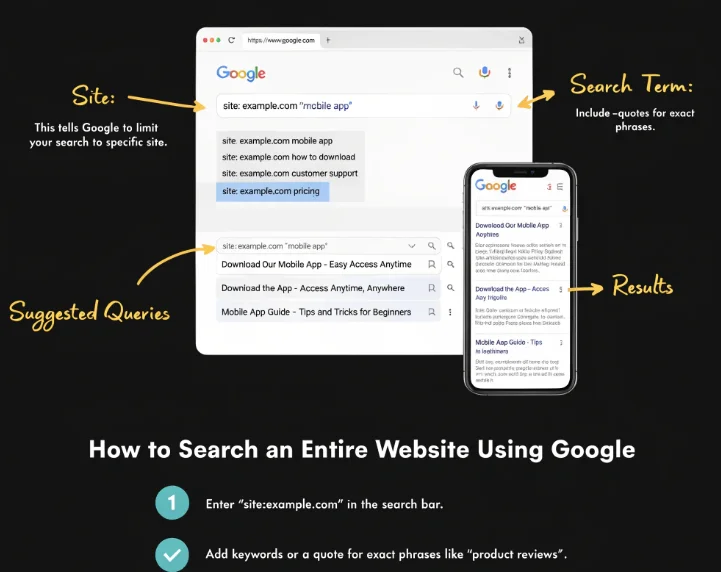
Understanding the Site: Search Operator
A technique I often use in SEO research involves understanding the site: search operator. This Google command allows you to restrict results to a single domain. Example:
site:example.com keyword
If you want to find articles about SEO on a specific website, you might search:
site:example.com SEO tips
This method shows only pages from that website related to the keyword.
Examples of Google Site Search Queries
To demonstrate examples of Google site search queries, here are a few practical searches I regularly use:
site:example.com "technical SEO"
site:example.com keyword research guide
site:example.com blog SEO tools
Each query limits results to the same domain but targets different keywords.
Combining Search Operators for Advanced Searches
Once you understand the basics, combining search operators for advanced searches becomes useful. For example:
site:example.com "SEO checklist" -beginner
This search removes beginner-level pages and focuses on more advanced content.
Using a Website’s Built-In Search Function
Where to Find the Website Search Bar
When explaining using a website’s built-in search function, I usually point people toward the navigation header or sidebar because that’s where to find the website search bar on most modern sites. It typically appears as a magnifying glass icon or a simple search field at the top of the page.
Tips to Get More Accurate Search Results
Over time I’ve noticed that applying tips to get more accurate search results can significantly improve internal searches. Use short keyword phrases instead of full questions, try alternative keyword variations, and filter results if the website provides category or date filters.
Common Issues with Website Search
However, there are still common issues with website search. Some search tools fail to index older pages or cannot understand related keywords, which can cause important content to stay hidden from users.
Advanced Methods to Search Within a Website
Searching Specific Keywords on a Website
When discussing advanced methods to search within a website, the first step is searching specific keywords on a website. This means using clear search terms like SEO audit checklist instead of broad words like SEO.
Using Google Operators Like intitle: and inurl:
A more technical technique involves using Google operators like intitle: and inurl:. Example:
site:seoadvisers.co.uk intitle:"SEO guide"
site:seoadvisers.co.uk inurl:seo
These commands help locate pages where the keyword appears in the title or URL.
Finding Specific File Types on a Website
Another helpful strategy is finding specific file types on a website using Google. Example:
site:example.com filetype:pdf SEO
site:seoadvisers.co.uk filetype:pdf SEO
This query returns PDF documents related to SEO hosted on the website.
Tools That Help You Search Website Content
Using SEO Tools to Analyze Website Keywords
Professional marketers often rely on specialized tools, so using SEO tools to analyze website keywords can reveal what pages exist and what topics they target. Tools like Ahrefs or SEMrush show indexed pages, keyword rankings, and internal content structure.
Keyword Research Tools for Website Content Discovery
Similarly, keyword research tools for website content discovery help identify hidden content opportunities. By analyzing search terms related to a domain, these tools reveal which pages attract traffic and which topics still need coverage.
Why Searching Within a Website Matters for SEO
Improving User Experience with Better Site Search
From an SEO perspective, why searching within a website matters for SEO is closely tied to user behavior. Improving user experience with better site search helps visitors quickly locate content, which increases time spent on the site and reduces frustration.
Using Internal Search Data for SEO Strategy
A technique I regularly recommend is using internal search data for SEO strategy. Website analytics often record what visitors search for internally, and those queries reveal real content gaps that can inspire future articles.
Common Problems When Searching a Website (And Fixes)
When Search Results Don’t Show the Right Pages
One frequent issue appears when search results don’t show the right pages, usually because the website search system relies on exact keyword matches rather than semantic relevance.
Why Some Pages Don’t Appear in Google Site Search
Another common question involves why some pages don’t appear in Google site search. This usually happens if the page is not indexed, blocked by robots.txt, or recently published.
Fixing Website Search That Isn’t Working Properly
When troubleshooting fixing website search that isn’t working properly, I usually check indexing settings, search plugin configuration, and page metadata to ensure the search engine can properly crawl and display results.
Best Practices for Website Owners to Improve Site Search
Optimizing Internal Search for Better UX
For site owners, best practices for website owners to improve site search often start with optimizing internal search for better UX by ensuring that search tools index all pages and return relevant results quickly.
Adding Smart Search Filters
Another improvement involves adding smart search filters, which allow users to sort results by categories, date, or relevance.
Tracking Site Search Queries with Analytics
Finally, tracking site search queries with analytics helps identify what visitors are trying to find, giving valuable insights that can guide content updates and SEO planning.
Conclusion
Learning how to search within a website can save a significant amount of time when browsing large sites with hundreds of pages. Instead of navigating through menus or categories, users can quickly locate the exact information they need by using simple techniques like browser shortcuts, Google search operators, and built-in website search tools. In many cases, combining methods such as Ctrl + F, internal site search, and the site: operator provides the fastest and most accurate results.
For website owners, improving internal search is equally important. A well-optimized search system helps visitors find relevant pages, improves navigation, and supports a better user experience. Tracking internal search queries can also reveal what people are looking for, helping guide future content creation and SEO strategy. When users can easily find useful information, they are more likely to stay longer on the site and return again.
Frequency Asked Question About how to search within a website
Q1. What is the easiest way to search within a website?
The easiest method is using the website’s search bar or the browser shortcut Ctrl + F (Windows) or Command + F (Mac) to locate specific words on the current page.
Q2. How do I search an entire website on Google?
You can use the site: search operator. For example:site:example.com keyword
This shows Google results only from that specific website.
Q3. Can I search a website on my phone?
Yes. Most mobile browsers allow you to use the “Find in Page” option from the browser menu to search for words within a page.
Q4. Why doesn’t a page appear in Google site search?
This usually happens if the page is not indexed, blocked by robots.txt, recently published, or restricted from search engines.
Q5. What tools help analyze website search data?
Tools like Google Analytics, Ahrefs, and SEMrush can help track search queries, analyze keywords, and understand how users find content within a website.